ElevenLabs Users: API Key Stopped Working In Spoken? Here’s the Fix
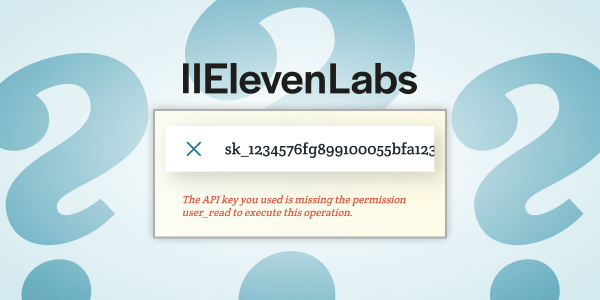
If you use ElevenLabs voices in Spoken, you may have noticed that they stopped functioning recently. This is due to a change ElevenLabs made to their API keys.
This should not apply if your API key is set as unrestricted. You should only follow this tutorial if you are currently having trouble using your previously connected ElevenLabs voices in Spoken. If you’ve never connected ElevenLabs to Spoken before, please see our tutorial for that instead.
What happened?
Previously, the User permission had the options No Access, Read, and Write. These settings have now been condensed to No Access and Access. If you had this set to Read before, the permission seems to have defaulted to No Access. You’ll need to edit the key on the ElevenLabs website and switch this particular permission to Access to continue using ElevenLabs voices in Spoken.
What to do if you haven’t cleared the API key
If your API key is still entered in Spoken, you can follow the steps below to fix it. If you cleared it from Spoken, please skip to the next section.
- Navigate to elevenlabs.io/app/developers/api-keys
- Log into your ElevenLabs account if you aren’t already
- The API key you created for Spoken should be listed here. Click or tap the three dots to the right of the key. On mobile you may need to scroll to the right to see them
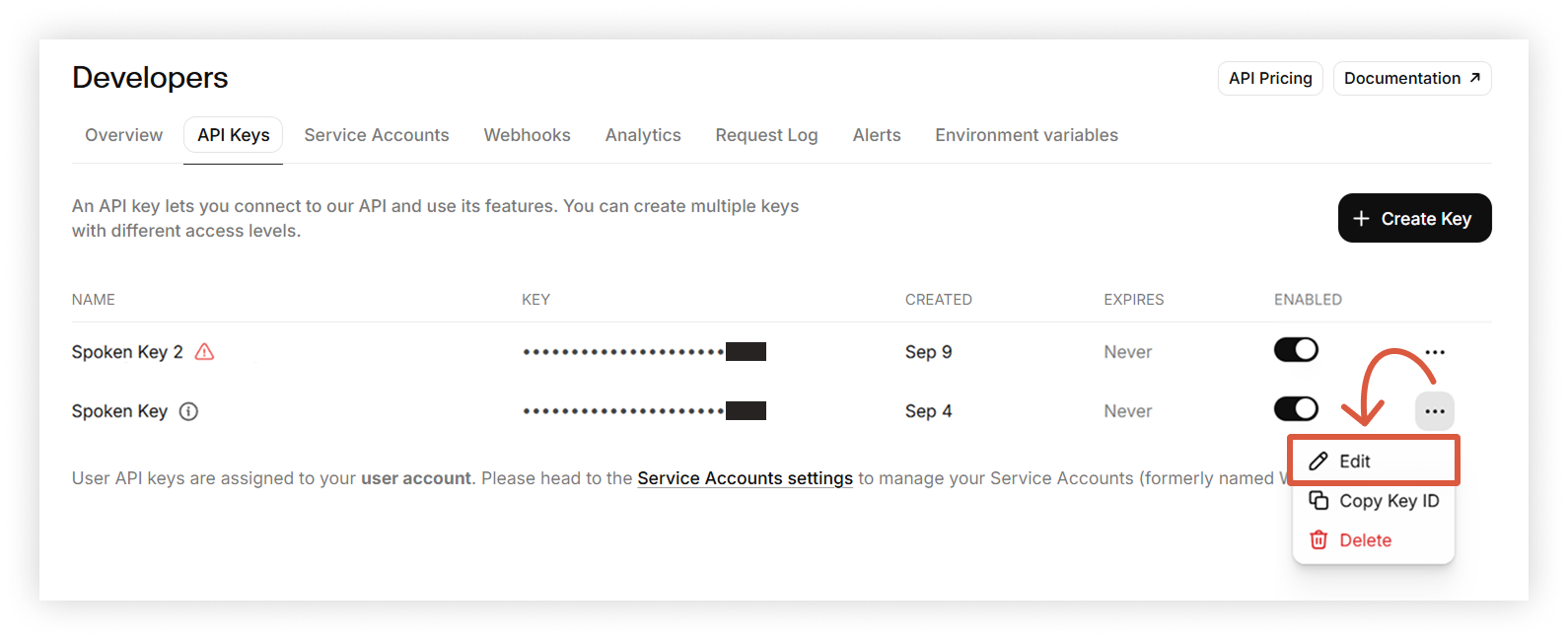
- In the menu that appears below the three dots, click or tap Edit
- A larger menu will appear that allows you to change the API key’s permissions. Scroll until you see User and set it to Access
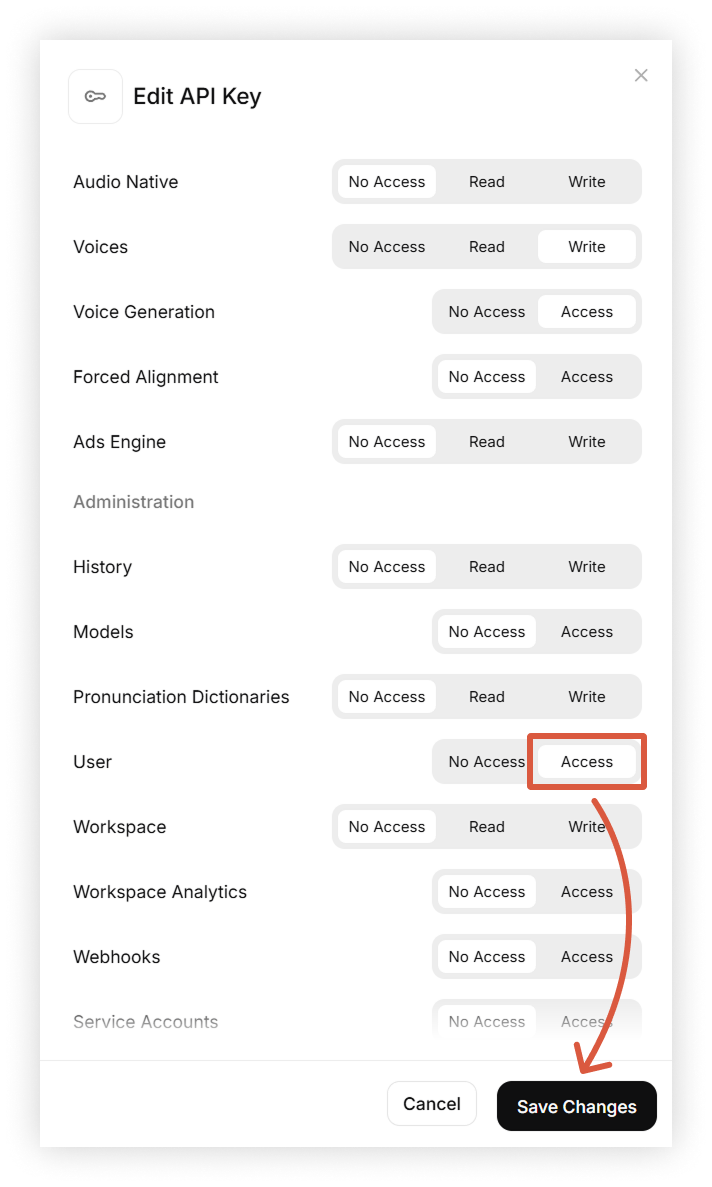
- Make sure to click the “Save Changes” button before exiting
What to do if you’ve cleared the API key
Unfortunately, this process is slightly more difficult if you have already cleared your API key from Spoken. Unless you have copied your API key to a separate document, you will need to generate a new one.
If you did happen to save a copy, you can simply paste it into Spoken and it should work as usual. Otherwise, please follow our tutorial for generating a new API key, which has been updated to reflect the recent changes to API key permissions. This shouldn’t take much longer than editing an existing key.
We apologize for any inconvenience!

About Spoken
Spoken is an app that helps people with aphasia, nonverbal autism, and other speech and language disorders.